
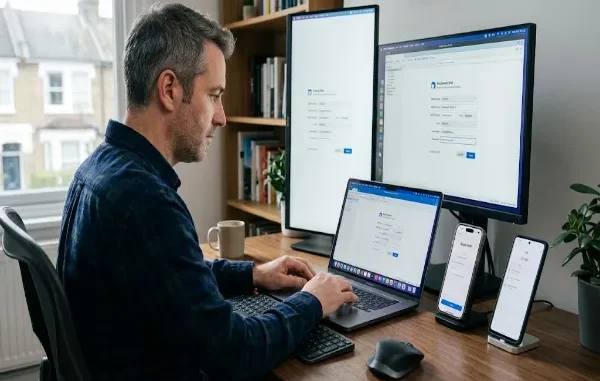
Libero Mail IMAP settings are imapmail.libero.it on port 993 with SSL/TLS. For outgoing mail, use smtp.libero.it on port 465 with SSL/TLS and SMTP authentication enabled. Your full Libero Mail address should be used as the username.
This guide explains the Libero Mail IMAP, SMTP, and POP3 settings and shows you how to configure the account in Outlook, Thunderbird, Apple Mail, iPhone, iPad, and Android.
If you’ve got a @libero.it address and you’re tired of opening a browser tab every time you want to check your inbox, you’re in the right place. Libero Mail — run by Italiaonline, one of Italy’s biggest internet companies — works just fine with desktop and mobile email apps. You just need the right server settings, and a few Libero-specific quirks won’t trip you up along the way.
If you’re having trouble signing into your account rather than configuring an email application, see our guide to Libero Mail login problems.
What Are the Libero Mail IMAP and SMTP Settings?
If you just need the numbers, here they are. Plug these into any email app and you’re set — no need to read through a full walkthrough.
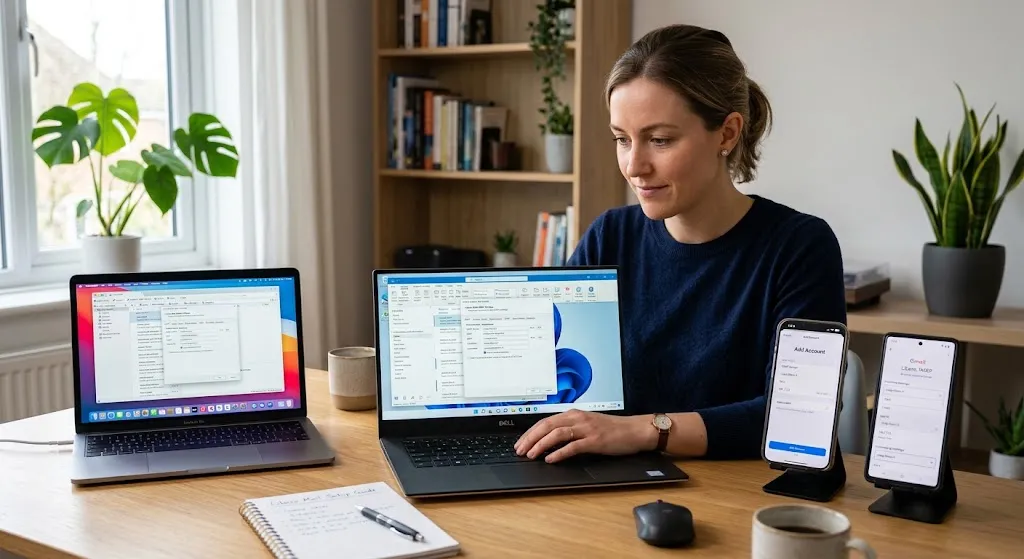
Libero Mail IMAP Settings at a Glance
For Libero Mail, use imapmail.libero.it as the incoming IMAP server on port 993 with SSL/TLS encryption. For outgoing mail, use smtp.libero.it as the SMTP server on port 465, also with SSL/TLS encryption and SMTP authentication enabled. Your full Libero Mail address (for example, yourname@libero.it) should be entered as the username for both incoming and outgoing mail. If you need POP3 instead of IMAP, use popmail.libero.it on port 995 with SSL/TLS.
IMAP or POP3: Which Should You Use?
Quick answer: use IMAP unless you have a specific reason not to.
IMAP keeps everything synced across every device you check your email on. Read something on your phone, and it shows as read on your laptop too. Delete a message on your desktop client, and it disappears from your phone’s inbox as well. Your mail stays on Libero’s servers, and every app you connect just shows you a live view of it.
POP3 works differently. It downloads your messages to whichever device you’re using and, depending on how it’s configured, can remove them from the server afterward. That means an email you read on your phone might not show up at all when you check your laptop later. It made more sense back when people only checked email from one computer. These days, IMAP is almost always the better call.
Before You Start: A Few Things to Check
Check your account password before starting. If you recently changed your Libero Mail password, make sure you update the saved password in your email app or email client as well.
Use your full email address as the username. This trips people up constantly. Libero wants yourname@libero.it, not just yourname.
Make sure SSL/TLS is enabled wherever the option appears. Skipping encryption is one of the most common reasons IMAP setup fails outright, and leaving it off isn’t something you want to do anyway — it protects your login credentials in transit.
With that out of the way, here’s how to actually set things up in the apps people use most.
How to Set Up Libero Mail in Outlook
Outlook makes this about as painless as it gets, since it can usually detect Libero’s settings automatically.
- Open Outlook and go to File in the top-left corner.
- Click Add Account.
- Enter your full Libero email address and click Connect.
- Enter your password when prompted.
- Outlook may detect the Libero Mail settings automatically. If automatic setup fails or Outlook stalls during configuration, choose the manual setup option and enter the IMAP and SMTP settings listed above. Once the account connects, click Done and your Libero inbox should begin syncing. You can use the same credentials as incoming mail.
IMAP: imapmail.libero.it
Port 993
SSL/TLS
SMTP: smtp.libero.it
Port 465
SSL/TLS
SMTP authentication required
How to Set Up Libero Mail in Thunderbird
Thunderbird gives you a bit more visibility into what’s happening during setup, which is handy if something doesn’t connect on the first try.
- Open Thunderbird and click the menu icon, then select Account Settings.
- In the bottom-left corner, click Account Actions, then Add Mail Account.
- Enter your name, your full Libero email address, and your password.
- Click Configure manually instead of letting Thunderbird auto-detect, so you can enter the exact server details.
- Under Incoming, select IMAP and enter
imapmail.libero.it, port993, with SSL/TLS as the connection security. - Under Outgoing, enter
smtp.libero.it, and port465(SSL/TLS). - Set the username field to your full email address for both incoming and outgoing servers.
- Click Re-test, and once Thunderbird confirms the connection, click Done.
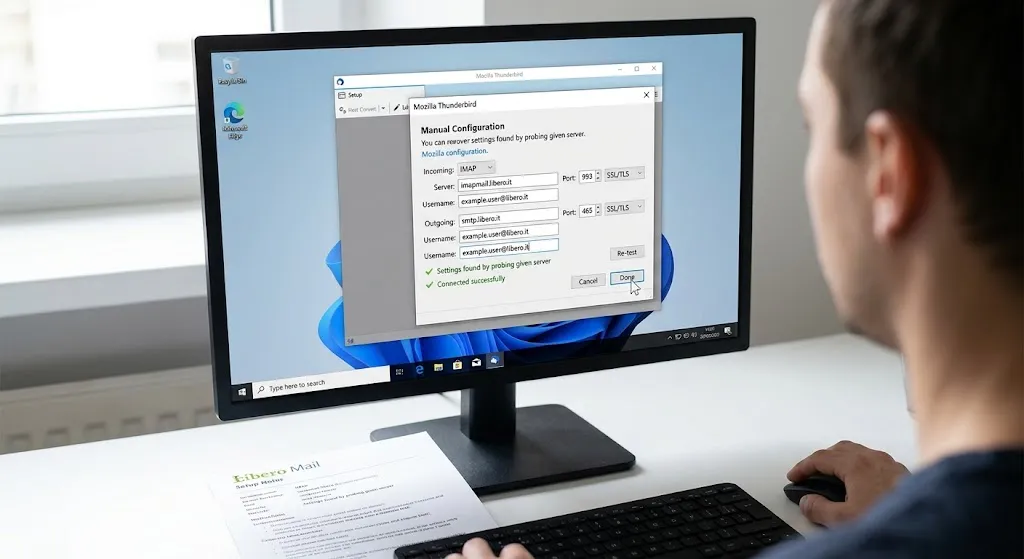
Thunderbird will flag it clearly if a port or security setting is wrong, which makes troubleshooting faster than apps that fail silently.
How to Set Up Libero Mail on Apple Mail (Mac)
- Open Mail, then go to Mail > Add Account.
- Choose Other Mail Account.
- Enter your name, your full Libero email address, and your password, then click Sign In.
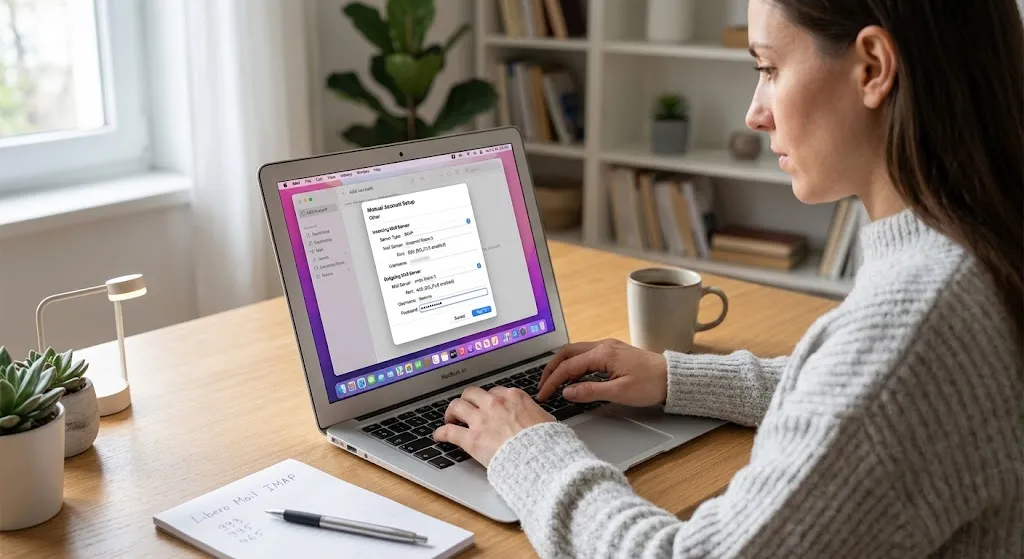
- If Apple Mail can’t auto-configure the account, you’ll be prompted to enter the incoming and outgoing server details manually. Use
imapmail.libero.itfor incoming andsmtp.libero.itfor outgoing, matching the ports and security settings listed earlier. - Click Sign In again to finish, and Apple Mail will begin syncing your Libero inbox.
How to Set Up Libero Mail on iPhone or iPad
- Go to Settings > Mail > Accounts > Add Account.
- Tap Other, then Add Mail Account.
- Enter your name, full Libero email address, password, and a description (like “Libero Mail”), then tap Next.
- Choose IMAP at the top of the screen.
- Under Incoming Mail Server, enter
imapmail.libero.it. - Under Outgoing Mail Server, enter
smtp.libero.it. - Enter your full email address and password again in both sections if prompted, then tap Next.
- iOS will verify the settings. Once it’s done, tap Save.
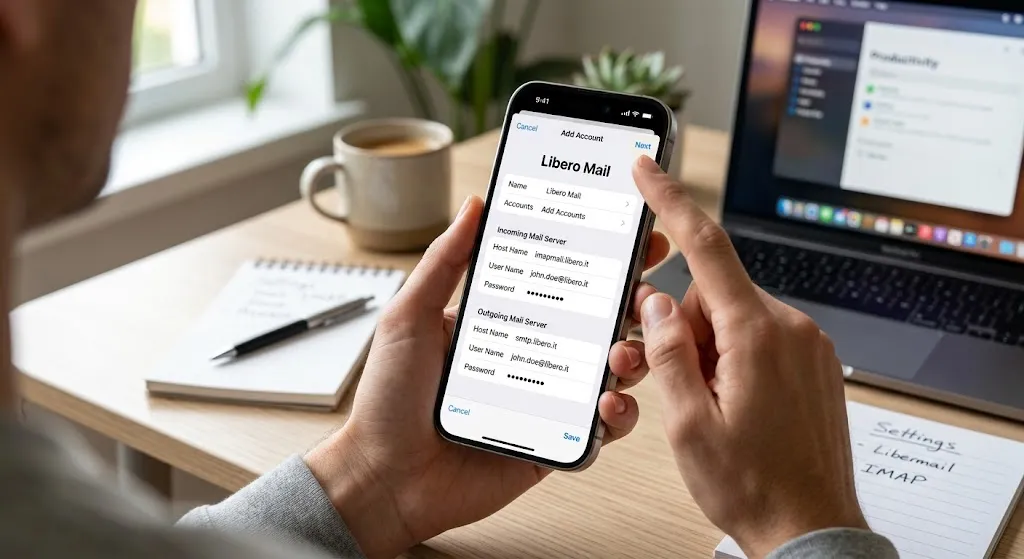
If verification fails, double check that you used port 993 for incoming, and 465 for outgoing, under the advanced settings for each server.
How to Set Up Libero Mail on Android
The exact menu layout varies a little by phone and mail app, but the general path looks like this:
- Open your device’s Email or Gmail app and choose Add Account.
- Select Other or Personal (IMAP), depending on what your app calls it.
- Enter your full Libero email address and password.
- When prompted for manual setup, choose IMAP.
- Enter
imapmail.libero.itfor the incoming server, port993, with SSL/TLS security. - Enter
smtp.libero.itas the outgoing server, use port 465, select SSL/TLS, and make sure authentication is enabled. - Confirm your username is your full email address on both the incoming and outgoing screens, then finish setup.
What Are the Most Common Libero Mail Setup Problems?
“Username or password incorrect” even though you’re sure it’s right. Nine times out of ten, this means the username field only has the part before the @ sign instead of the full address. Go back and make sure it reads the complete yourname@libero.it.
Connection times out or fails to verify. Usually a port or security mismatch. Double check that IMAP is using port 993 with SSL/TLS, and SMTP is using 465 with SSL/TLS — mixing these up is the most common cause of a failed connection.
Emails send but never arrive, or arrive but you can’t send. This usually points to the SMTP side specifically. Recheck the outgoing server address and port, and make sure “SMTP requires authentication” is checked if your app has that as a separate toggle — some clients don’t enable it by default.
Everything was working, then suddenly stopped. Check that your email client is still using the correct credentials and server settings. Check whether your email app needs an updated password or authentication method to keep working with 2FA enabled.
Final Thoughts
Once it’s set up, Libero Mail behaves like any other IMAP account — quiet, reliable, and synced across everything you use to check it. The settings themselves haven’t changed much over the years, and most connection problems come down to one of a small handful of things: the wrong username format, a mismatched port, or a security setting that got missed along the way.
For a broader overview of Libero Mail features, security, settings, and common problems, see our complete Libero Mail guide.
If you get stuck after working through the steps above, it’s worth checking Libero’s own help documentation for anything account-specific, especially if you’ve recently changed your password or enabled extra security features. Otherwise, these settings should get you connected in the app of your choice in just a few minutes.
About the Author — Ana Milojevik
Ana Milojevik is a technology and online services writer who focuses on practical guides that help readers solve everyday digital problems. She covers email services, account settings, software, and internet tools, with an emphasis on clear, step-by-step instructions that are easy to follow.
For this guide, Ana explains how to configure Libero Mail using IMAP and SMTP settings across popular email clients and devices, including Outlook, Thunderbird, Apple Mail, iPhone, iPad, and Android. Her goal is to make technical setup straightforward for readers, even when they have little technical experience.
FAQ: Libero Mail IMAP Settings
The Libero Mail IMAP server is imapmail.libero.it, using port 993 with SSL/TLS encryption. Your complete Libero email address should be entered as the username.
For outgoing mail, use smtp.libero.it on port 465 with SSL/TLS encryption. SMTP authentication should also be enabled, using your full Libero email address and password.
IMAP is generally the better choice because it keeps your emails synchronized across multiple devices. POP3 downloads messages to a device and is more suitable for users who have a specific reason to store email locally.
Use your full Libero Mail address, such as yourname@libero.it, as the username for both incoming and outgoing mail servers.
The POP3 server is popmail.libero.it, using port 995 with SSL/TLS encryption.
Yes. Libero Mail can be configured in Outlook using IMAP for incoming mail and SMTP for outgoing mail. Outlook may detect the settings automatically, but you can also enter them manually if necessary.
Yes. Add Libero Mail through Settings > Mail > Accounts > Add Account > Other > Add Mail Account, then select IMAP and enter the Libero incoming and outgoing server settings.
Make sure you are entering your complete email address rather than only the part before @libero.it. If the problem continues, check that your password is current and that your email client has the correct authentication settings.
This usually indicates a problem with the SMTP configuration. Check that the outgoing server is smtp.libero.it, port 465 is selected, SSL/TLS is enabled, and SMTP authentication is turned on.
Check the incoming server address, port, encryption, and username. The standard IMAP configuration is imapmail.libero.it, port 993, with SSL/TLS and your complete Libero email address as the username.
The Libero Mail IMAP server is imapmail.libero.it.
Libero Mail uses port 993 for IMAP with SSL/TLS encryption.
Libero Mail uses port 465 for SMTP with SSL/TLS encryption and SMTP authentication.
Sources
- Libero Help — Configure Libero Mail with email clients: IMAP and SMTP parameters — Official Libero documentation covering the IMAP, POP3, and SMTP server addresses, ports, encryption, authentication, and username requirements. Libero Mail IMAP and SMTP Settings
- Libero Help — Libero Mail configuration in Microsoft Outlook — Official instructions for checking and configuring Libero Mail IMAP and SMTP settings in Outlook. Libero Mail in Microsoft Outlook
- Libero Help — Libero Mail configuration in Thunderbird — Official Thunderbird configuration guide, including IMAP port 993, SMTP port 465, SSL/TLS, and authentication settings. Libero Mail in Thunderbird
- Libero Help — Libero Mail configuration on iPhone and iPad — Official instructions for configuring and verifying Libero Mail in Apple’s Mail app. Libero Mail on iPhone and iPad
- Libero Help — Libero Mail configuration in Gmail for Android — Official Android Gmail instructions covering IMAP, POP, and SMTP settings. Libero Mail in Gmail on Android
- Libero Help — Libero Mail configuration in Samsung Email — Official instructions for Samsung’s Email app, including IMAP and SMTP server settings. Libero Mail in Samsung Email
Related posts:
 The Complete Guide to Using Telegram for Secure and Smart Communication
 The Chemistry Behind Firefighting Foam: How Surfactants Make Fire Suppression Work
 Dell Latitude 5540 Performance Tested: Can It Handle Your Workflow?
 Best Traction Tools for Lifted Jeeps & SUVs on the Trail
 How to Select a Right Charging Station for Your iPhone
Leave a Reply