
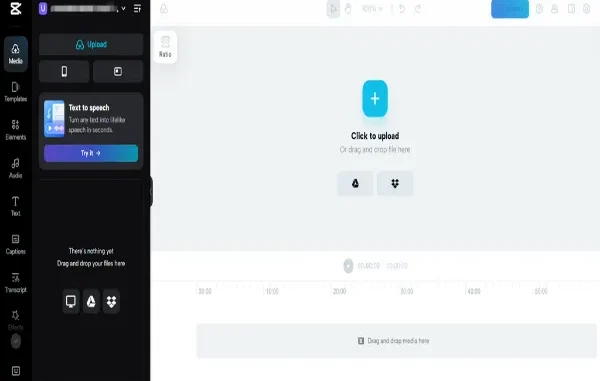
Method 1: Use Desktop Software (Most Reliable)

Use CapCut (recommended) or OpenShot
Desktop software is the most stable and trustworthy option if you want full control and zero restrictions. Unlike many online tools, these programs are fully free and open-source, which means they will never force watermarks or limit exports.
Steps:
- Open the software and import your video file
- Drag the video onto the timeline
- Use the “Split” or “Cut” tool to remove unwanted parts
- Click “Export” to save your final video
Why this works:
- These tools are not built on a “freemium trap” model
- No login or account is required
- You can export in high quality without limitations
Pros:
- 100% free forever
- No watermark under any condition
- Works offline (no upload needed, better privacy)
- Supports multiple formats (MP4, MOV, AVI, etc.)
Cons:
- Requires download and installation
- Slight learning curve for complete beginners
Tip:
If you only need basic cutting, you’ll learn everything in under 10 minutes. Just focus on “Split” and “Export”—ignore everything else.
Method 2: Use Mobile Apps (Fastest)
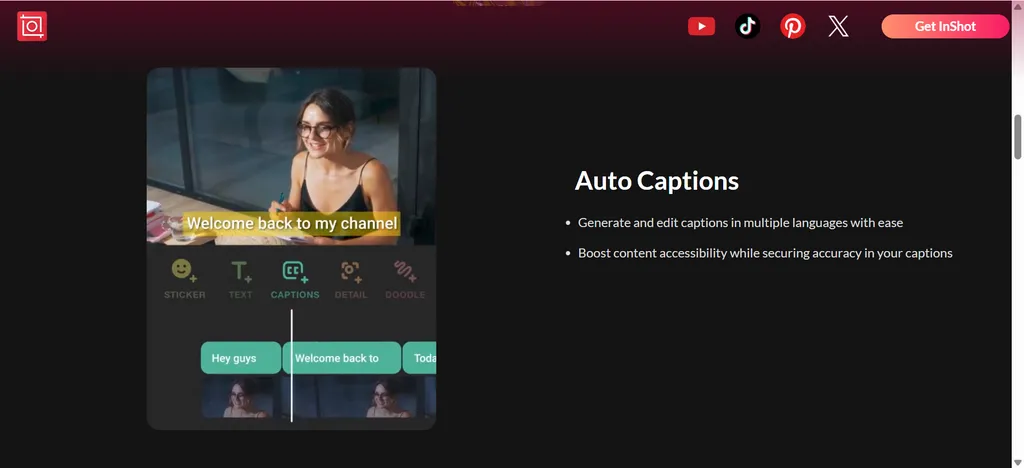
Use inshot or VN Video Editor
If you prefer editing on your phone, this is the fastest way to cut a video and export it instantly. These apps are designed for speed and simplicity, especially for short-form content like TikTok, Instagram Reels, or YouTube Shorts.
Steps:
- Create a new project and import your video
- Tap the clip and choose “Split” or “Trim”
- Delete unwanted segments
- Export the video
Important:
- Some apps may add a default ending (logo/outro)
- Simply delete the last clip before exporting
Pros:
- Extremely fast and beginner-friendly
- No computer required
- Ideal for social media content
Cons:
- Smaller screen = less precise editing
- Some features may be locked (but basic cutting is free)
Tip:
For quick edits like trimming the start/end or removing mistakes, mobile apps are often faster than desktop tools.
Method 3: Use Online Tools (No Download Needed)
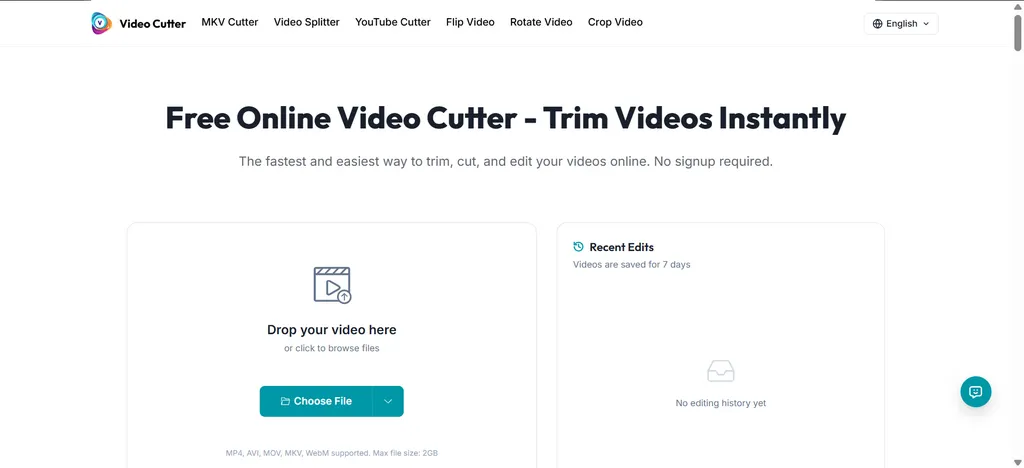
Use a simple online tool like Video Cutter
This method works directly in your browser. No installation, no setup. Just upload, cut, and download.
Steps:
- Open the online video cutter
- Upload your video
- Adjust the start and end points
- Export the edited file
Important:
- Choose tools that clearly say “no watermark”
- Avoid anything labeled “free trial”
- Skip tools that require login for export
Pros:
- Zero installation
- Works on any device (PC, Mac, even mobile browsers)
- Simple interface, no learning needed
Cons:
- Upload speed depends on your internet
- Large files may take longer
- Some sites are misleading (claim free but add watermark later)
Tip:
Online tools are perfect for quick, one-time edits—but not ideal for large or frequent projects.
Best Choice (If You Don’t Want to Think)
If you just want a quick decision:
- On desktop: Use CapCut
- On mobile: Use Inshot (and remove the ending clip)
- Online (no download): Use a Video Cutter
That’s it. These options cover almost all basic editing needs without watermarks or payments.
Final Thoughts
The reason many people struggle with watermarks is not because editing is hard—it’s because most tools are designed to push users into paid plans.
To avoid that completely, follow this rule:
Use open-source software or simple tools that don’t rely on subscriptions.
Once you do that, video editing becomes simple, fast, and completely free.
Related posts:
 Water Damage Restoration Service Lanham: Fast & Efficient
 What Does C3PAO Mean for the Future of Risk Management?
 Creating Stunning Face Swap Videos with AI: How to Use Face Swap Video Tools for Free
 How Dechecker AI Checker Turns Awkward Drafts Into Human-Readable Content
 The Complete Guide to Using Telegram for Secure and Smart Communication
Leave a Reply