
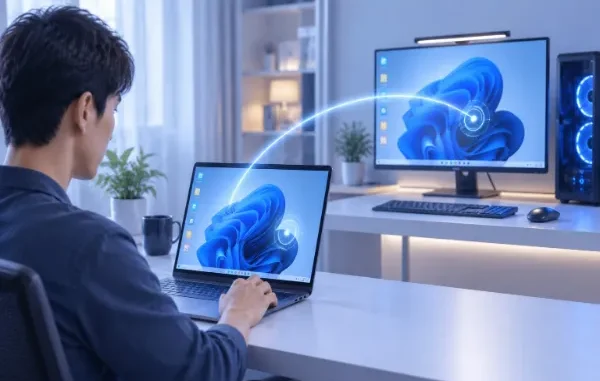
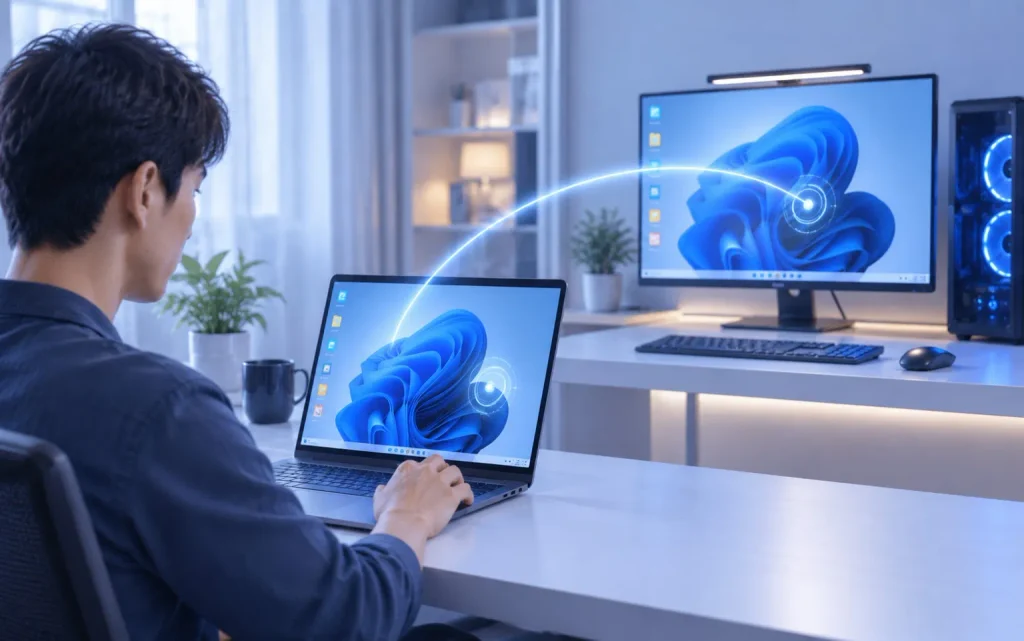
Remote access has become a practical part of everyday computing. You may need to open a file stored on your home computer while at work, use an application installed only on your office PC, help a family member troubleshoot a device, or manage a computer that nobody is physically sitting in front of. The right remote desktop software can make these tasks much easier, but not every solution is designed for the same needs.
Instead of choosing a tool simply because it is popular, it is worth looking at how well it matches your devices, connection, security requirements, and typical workflow. Here are the most important factors to consider.
Start With Your Remote Access Needs
The first question is simple: what do you actually want to do remotely?
Someone who occasionally accesses a personal computer has different requirements from a small business that needs regular technical support. Before comparing software, identify your most common use case.
You might need to:
- Access your personal computer while away from home
- Connect to an office workstation from another location
- Control a Windows PC from a phone or tablet
- Move files between remote devices
- Maintain a computer that is normally unattended
- Provide remote technical assistance
- Work between different operating systems
This matters because a solution that works well for basic screen control may not offer convenient file transfer or mobile access.
Look for Broad Device Compatibility
A modern remote access software solution should work across the devices you already use. If your main computer runs Windows but you sometimes connect from a Mac, tablet, or smartphone, cross-platform compatibility becomes especially important.
A cross-platform remote desktop solution can reduce the need to maintain separate tools for different devices. It can also make your workflow more flexible because you are not tied to one particular operating system.
For example, mobile-to-PC access can be useful when you need to check something on your computer but only have your phone available. A larger screen, keyboard, and mouse are generally preferable for extended work, while a phone can be convenient for quick checks or simple tasks.
Check File Transfer Capabilities
Remote control is only part of the equation. In many everyday situations, you need to move a document, image, spreadsheet, or other file between devices.
A remote desktop with file transfer can save time by allowing files to be moved directly between connected devices instead of relying on a separate cloud-storage workflow.
This is particularly useful when:
- A file is too large or inconvenient to upload elsewhere
- You need to retrieve a document from a home computer
- You are working between different operating systems
- You want to send a file to a remote workstation
- You need to transfer files during technical support
AweSun, for example, currently supports cross-platform file transfers, including drag-and-drop transfer and two-way movement between PCs and mobile devices.
Consider Unattended Remote Access
Not every remote session has someone sitting beside the computer to approve the connection. If you regularly need to reach a home or office computer while nobody is there, unattended remote access can be an important feature.
This is useful for situations such as accessing an office PC after working hours, retrieving a file from a home computer, or performing routine maintenance on a remote machine.
However, convenience should not come at the expense of security. Look for options that allow you to control which devices can connect and provide appropriate authentication and session controls.
AweSun’s current feature set includes unattended access to office computers and options such as automatic session locking and remote power-on through compatible hardware.
Don’t Ignore Connection Performance
Even a feature-rich application becomes frustrating if the remote session constantly freezes, disconnects, or responds slowly.
Performance depends on several factors, including your internet connection, the remote computer’s network, hardware, distance between locations, and the type of work you are performing.
For everyday tasks such as opening documents or managing files, moderate latency may be acceptable. More demanding activities require a smoother connection.
When evaluating a solution, consider:
- How quickly sessions establish
- How responsive mouse and keyboard controls feel
- Performance on slower networks
- Stability during longer sessions
- Whether the service supports your typical geographic locations
AweSun currently states that some remote desktop sessions can load in as fast as 0.8 seconds under its lab testing conditions, while noting that actual performance can vary with device and network conditions.
Pay Close Attention to Security and Access Controls
Remote desktop technology gives another device access to a computer, so security should be considered before convenience.
Look for features such as device authentication, two-factor or multi-factor authentication, permission controls, session alerts, and the ability to block unfamiliar connections. It should also be easy to terminate a session if something appears suspicious.
AweSun currently describes several security controls, including trusted-device authentication, dual authentication, alerts during remote sessions, suspicious-access blocking, and controls that can restrict actions such as mouse input or file transfer.
For business users, more advanced permission management and auditing can become important as the number of users and devices grows.
Think About Remote Support Too
Remote access and remote support overlap, but they are not exactly the same.
With personal remote access, you are usually connecting to your own computer. Remote support involves helping another person with their device. For example, you might need to troubleshoot software, explain a setting, inspect a problem, or transfer a required file.
If support is part of your routine, choose software that makes temporary connections straightforward while still giving the person on the remote computer control over access.
Free vs. Paid Plans
Price should be considered alongside your actual requirements. A free plan may be sufficient for occasional personal access, while regular professional use may justify paid features.
Before upgrading, check exactly what the paid plan adds. Depending on the service, upgrades may provide additional device management, performance options, business controls, or other advanced capabilities.
AweSun offers a free-to-start approach with personal and enterprise-oriented options, allowing users to begin with remote desktop functionality and consider paid upgrades when their requirements become more demanding.
For users looking for a flexible option covering PC access, mobile connectivity, file transfer, and remote support, AweSun Remote Desktop is one solution worth evaluating alongside other remote desktop products.
A Simple Buying Checklist
Before selecting remote desktop software, make sure it fits your actual workflow rather than simply having a long list of features.
| What to evaluate | Why it matters |
| Device compatibility | Lets you connect from the computers and mobile devices you actually use |
| File transfer | Makes retrieving and sending remote files easier |
| Unattended access | Allows access when nobody is physically at the remote computer |
| Connection performance | Determines how responsive everyday work feels |
| Security controls | Helps prevent unauthorized access |
| Remote support | Useful for troubleshooting another person’s computer |
| Pricing | Ensures the plan matches your frequency and scale of use |
| Ease of use | Reduces setup and troubleshooting time |
Choose for Your Real-World Workflow
The best remote desktop choice is not necessarily the one with the longest feature list. It is the one that reliably handles the tasks you perform most often.
For occasional personal access, simplicity may matter most. Someone working remotely may prioritize cross-platform compatibility, file transfer, and unattended access. A technical support user may care more about permissions, session controls, and troubleshooting capabilities.
Take time to test the connection from the locations and devices you actually use. Check how easily files can be transferred, whether mobile access works comfortably, and whether the security controls provide the level of control you need.
With those factors in mind, choosing remote desktop software becomes less about finding a universally “best” product and more about finding a practical solution that fits your everyday remote-access requirements.



Leave a Reply