
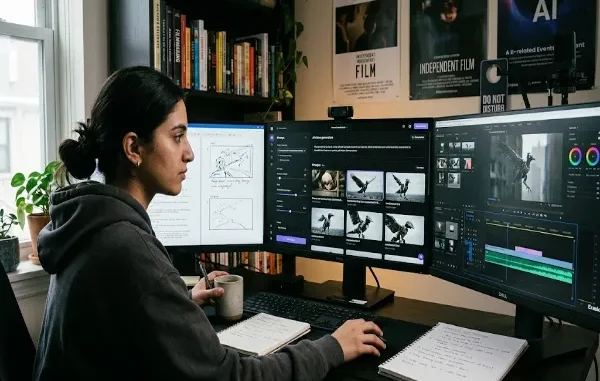
Creating an AI-generated video is often described as a simple process: write a prompt, generate the video, and publish it.
In practice, producing a polished result usually requires several additional steps.
A well-organized workflow can help creators save time and produce more consistent content.
Step 1: Develop the Concept
Every video should begin with an idea.
Before opening an AI video generator, determine what you want the viewer to see.
Think about the purpose of the video.
Is it:
- An advertisement?
- A social media post?
- An educational video?
- A short film?
- A product demonstration?
- A visual experiment?
Knowing the objective makes it easier to create suitable prompts.
Step 2: Write the Prompt
The prompt describes the scene that the AI should generate.
Useful prompts often contain information about the subject, environment, camera, lighting, movement, and style.
For example:
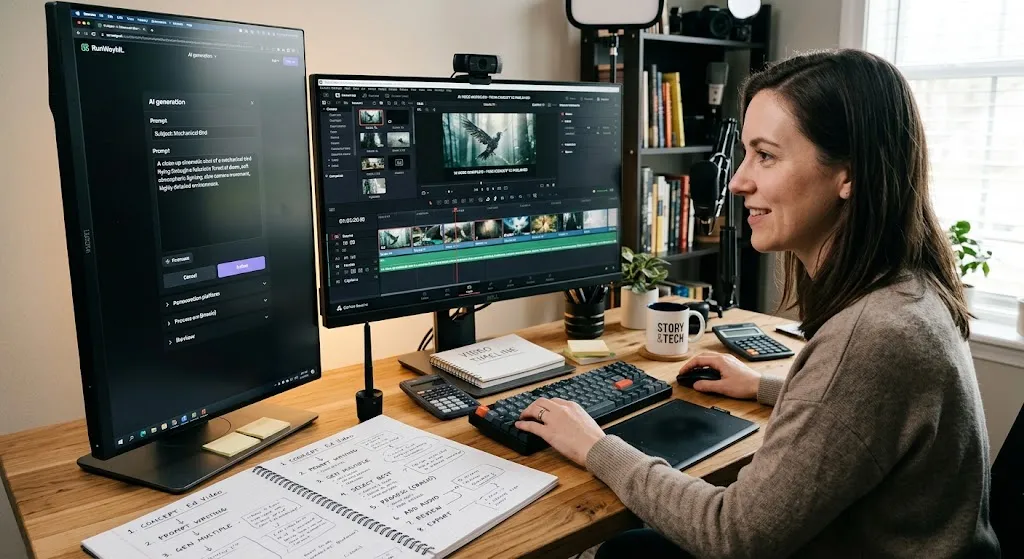
“A close-up cinematic shot of a mechanical bird flying through a futuristic forest at dawn, soft atmospheric lighting, slow camera movement, highly detailed environment.”
The exact format will vary between AI systems.
Step 3: Generate Multiple Versions
The first generation may not be perfect.
Instead of trying to create the final result immediately, generate several variations.
Compare them and identify which elements work best.
You might discover that one version has better movement while another has better lighting.
Step 4: Select the Best Clips
After generating several videos, choose the strongest clips.
A good clip should match the intended story and have acceptable visual quality.
Don’t choose a clip simply because it looks impressive. It should also fit the surrounding content.
Step 5: Process the Video
This is where traditional video editing becomes useful.
Creators may need to crop clips, adjust the aspect ratio, add subtitles, edit audio, or combine multiple scenes.
Some generated videos may also contain platform-specific visual elements such as watermarks.
If you have the right to modify the content, tools such as Erasio can be used for supported watermark-processing workflows.
If this step comes up in every project, Erasio’s Chrome extension keeps it inside the browser so the clip does not have to travel through another upload and download cycle.
Step 6: Add Audio
Sound can dramatically change the quality of an AI-generated video.
Depending on the project, you may add:
- Background music
- Narration
- Sound effects
- Ambient audio
Always make sure you have the necessary rights to use the audio.
Step 7: Review the Final Video
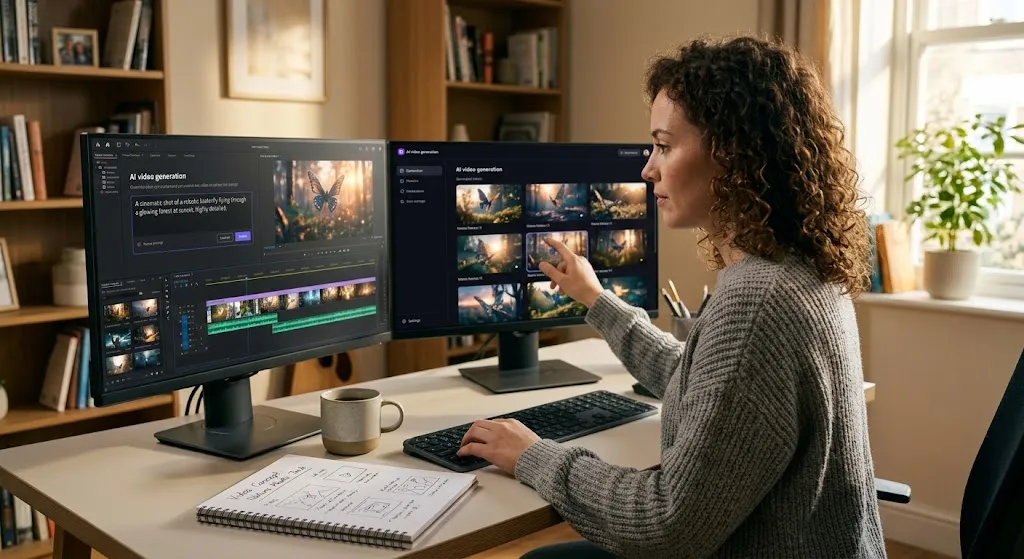
Watch the entire video before publishing.
Check for:
- Visual artifacts
- Unexpected objects
- Incorrect text
- Audio problems
- Abrupt transitions
- Incorrect aspect ratio
- Watermarks or unwanted elements
A final quality-control pass can prevent embarrassing mistakes.
Step 8: Export for the Target Platform
Different platforms use different video formats and dimensions.
A vertical short-form video may require a different aspect ratio from a YouTube presentation.
Export the final video according to the requirements of the platform where it will be published.
AI Does Not Replace the Creative Process
The most effective AI video workflows do not rely entirely on automation.
AI can generate scenes quickly, but creators still need to make decisions about storytelling, pacing, composition, and editing.
The best results often come from combining AI generation with human creativity.
Build a Repeatable Workflow
Once you discover a process that works, document it.
A repeatable workflow can make future projects faster:
Idea → Prompt → Generate → Select → Edit → Process → Review → Export → Publish
As AI video tools continue improving, creators will likely automate more of these steps.
But the fundamental workflow will remain useful because producing good content requires more than simply generating a video. It requires turning raw visual material into something meaningful for an audience.
About the Author
Adeel documents repeatable production workflows for AI-generated video. He also builds Erasio, a local, browser-based tool for processing watermarks in supported AI media.
Related posts:
 The Complete Guide to Using Telegram for Secure and Smart Communication
 The Chemistry Behind Firefighting Foam: How Surfactants Make Fire Suppression Work
 Dell Latitude 5540 Performance Tested: Can It Handle Your Workflow?
 Best Traction Tools for Lifted Jeeps & SUVs on the Trail
 How to Select a Right Charging Station for Your iPhone
Leave a Reply