
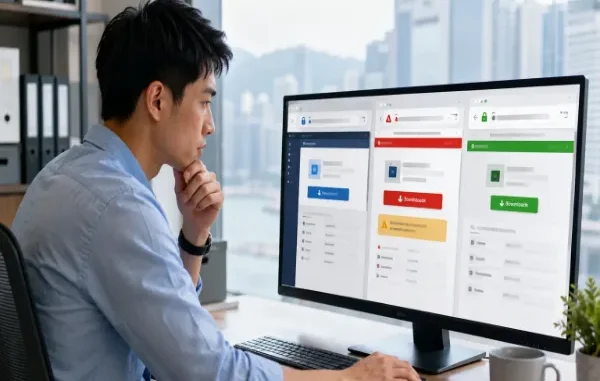
A practical guide to checking publishers, download routes, and software sources before you install anything

A polished interface is not proof that a download source is legitimate.
Downloading software used to be simple: find the developer, choose the right version, install it, and move on. Search results today are more crowded. Official websites can appear beside app stores, software directories, independent tutorials, sponsored listings, and pages that imitate legitimate download services.
That mix is especially easy to misread in multilingual markets. A user in Hong Kong or Taiwan may search in English, Traditional Chinese, or a combination of both, and each query can surface a different set of pages. The safest approach is not to memorize a list of trusted sites. It is to develop a repeatable way to verify who publishes the software, where the file actually comes from, and whether the installation path makes sense for the device in front of you.
The following checks take only a few minutes, but they can prevent the much larger problem of installing a modified client, handing credentials to an impersonation site, or downloading a file from an unknown source.
A Professional-Looking Page Can Still Be Misleading
A modern design, HTTPS, familiar icons, and convincing screenshots are weak signals of authenticity. A deceptive site can copy branding, product images, and page layouts very quickly. Even the padlock icon in the browser only tells you that the connection to that website is encrypted; it does not prove that the organization behind the site is the software publisher.
Before clicking a download button, look past the design and check the parts that are harder to fake consistently:
- the root domain in the browser address bar;
- the developer or publisher name;
- the operating system and software version being offered;
- the domain that actually serves the installer;
- unexpected redirects, bundled programs, or browser-extension prompts;
- claims such as “premium unlocked,” “modified,” or “optimized” versions.
One odd detail may have an innocent explanation. Several mismatches at once are a reason to stop and verify the source before continuing.
Start With the Domain, Not the Logo
The address bar is usually more useful than the logo on the page. Look at the root domain rather than the page title, favicon, or search-result description. Impersonation sites often rely on small differences: extra words, swapped letters, added hyphens, or a different top-level domain.
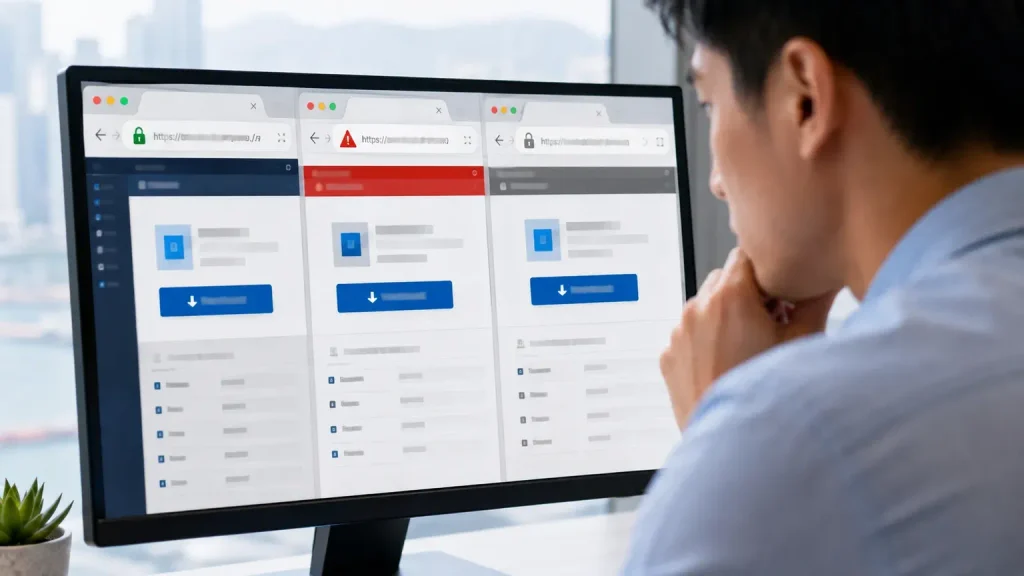
Compare the actual domain and source, not just the page title or familiar branding.
It is also important to distinguish an official site from an independent guide. A third-party tutorial can be useful without being the publisher. Problems start when users assume every page that explains a product is an official property.
Messaging apps are a good example. Search results can mix official pages, local-language instructions, software directories, and independent resources. Chinese-speaking users trying to identify the correct Telegram access route may use a Telegram 官网入口说明 to understand how the official domain, web access, and supporting resources differ. Such a page should be treated as a reference for identifying the official route, not as the Telegram official website itself.
That distinction improves both safety and clarity: a guide can explain where to go, but the user should still verify the actual publisher and final destination before signing in or downloading software.
Confirm the Publisher Across More Than One Source
After checking the domain, confirm who actually publishes the application. Microsoft Store, Google Play, and Apple’s App Store normally show a publisher or developer name. For direct downloads, compare that identity with the developer’s documentation, support pages, and other official channels.
A useful cross-check is consistency. Does the same organization name appear across platforms? Do official support pages point to the same download location? Does the version history look plausible? Is the installer signed by the expected publisher? You do not need every signal to be perfect, but a legitimate software ecosystem should tell a coherent story.
Know What Kind of Page You Are Looking At
Many download mistakes come from confusing different types of resources. The web page itself may be legitimate, but it may not serve the role the user assumes it does.
- Official developer websites usually provide product information, documentation, accounts, and direct download routes.
- Official app stores distribute software inside an operating-system ecosystem and show publisher information.
- Support and documentation sites explain setup, features, and troubleshooting.
- Independent guides provide tutorials or localization help but are not operated by the developer.
- Third-party download directories host or link to software from many publishers, so their reliability must be assessed separately.
The practical rule is simple: before installing anything, know which category the current page belongs to and where the actual file will come from.
Follow the Download Path All the Way to the File
A trustworthy-looking article can still send users somewhere unexpected when the download button is clicked. Pay attention to the final domain, filename, file type, and any redirects that appear along the way.
Warning signs include multiple oversized download buttons, forced notification requests, browser extensions that have nothing to do with the application, or a chain of advertising pages before the file appears. A Windows installer should also look like a Windows installer; an unexplained archive or unrelated executable deserves another check before opening.
Different Devices May Use Different Official Download Channels
There is not always one universal download button for every platform. The same service may distribute a Windows client through its website or Microsoft Store, send iPhone users to the App Store, and use Google Play or another documented route for Android. That is normal.
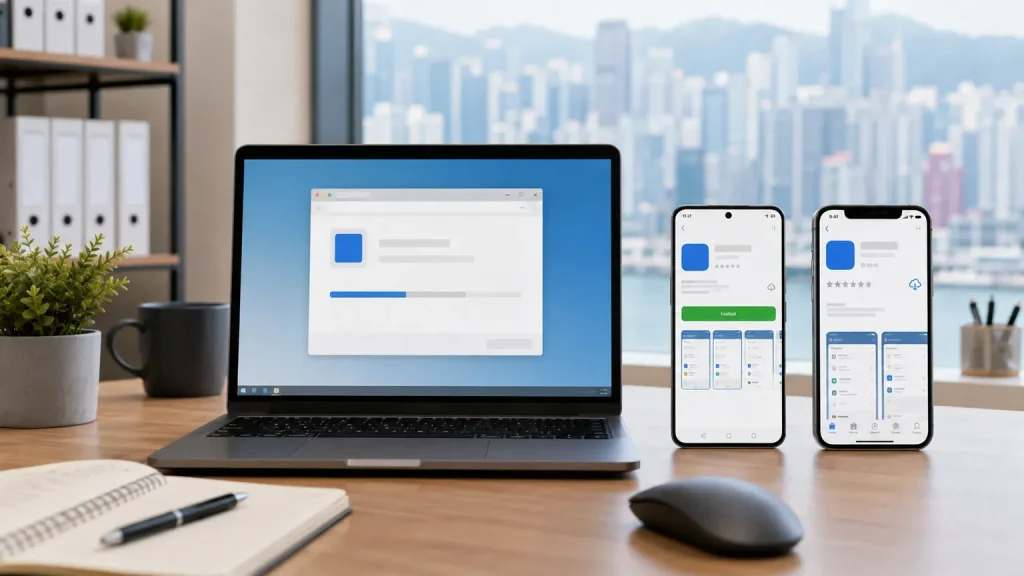
The correct download route can differ by operating system and device.
This is where localized search terms can create confusion. Traditional Chinese users may search for phrases such as 官方下載, 電腦版, 中文版, or a product name in English. Those queries can lead to pages serving very different purposes.
Users comparing Telegram installation options across Windows and mobile devices can refer to a Telegram 官网下载指南 for an explanation of platform-specific download routes and the difference between informational guidance and the software’s actual official distribution channels.
The key is to separate discovery from installation. A guide may help you understand which version you need; the installer itself should still come from a source you have verified.
Be Wary of Modified, “Unlocked,” or Repacked Installers
Modified software often attracts attention with promises of removed ads, premium features, regional workarounds, or extra customization. The trade-off is that the user usually has no reliable way to know what else has changed inside the package.
A repacked installer can add tracking, bundled applications, altered update behavior, or credential-stealing components. The risk is higher with software that handles accounts, messages, cloud files, passwords, or financial information because a compromised client may expose far more than the device itself.
If the original application already provides the functionality you need, an unofficial build rarely justifies that uncertainty.
Do Not Disable Security Features Just to Finish an Installation
A download page that casually instructs users to turn off antivirus protection, browser safeguards, or Windows security deserves scrutiny. False positives can happen, but reputable developers normally document known issues and provide a clear explanation.
Be especially cautious if instructions tell you to run unfamiliar scripts, install unknown certificates, change system policies, grant administrator access without context, or paste commands into a terminal. Those actions can change the device far beyond the application you intended to install.
Messaging Apps Deserve Extra Verification
Messaging software often has access to phone numbers, contact lists, shared files, microphones, cameras, and active account sessions. It may also participate in login and verification flows. That makes an unofficial or altered messaging client more consequential than a disposable utility.
Attackers do not necessarily need to read an entire conversation history. Capturing an authentication code, session token, or login credential may be enough to take over an account. For messaging apps in particular, verify the source before signing in, then review active sessions after installation.
Hong Kong and Taiwan Users Should Treat Localization as a Feature, Not Proof of Authenticity
Traditional Chinese search results often include phrases such as 中文版, 繁體中文版, 中文設定, and 中文語言包. Those labels can be useful, but they do not prove that a page belongs to the developer or that a download package is official.
Before installing a localized build, first check whether the official application already supports the language you need. If a separate language pack or configuration file is required, understand exactly what it changes and where it comes from. The same principle applies when search results mix Traditional Chinese, Simplified Chinese, and English resources: use the language that is most helpful, but verify the software source independently.
Check Permissions After Installation, Too
Source verification is only the first half of a safe setup. Once the software is installed, review the permissions it requests. A messaging app may reasonably need access to notifications, files, a microphone, or a camera. A simple utility asking for unrelated access deserves more attention.
Keep the application and operating system updated through trusted channels. On shared or work computers, also review saved credentials and active sessions. Software security is not a one-time decision made at the download page; it continues throughout the life of the installation.
A Five-Minute Download Safety Check
Before installing software from a search result or unfamiliar page, run through this short checklist:
- Check the root domain in the address bar.
- Confirm the developer or publisher from another trusted source.
- Identify whether the page is official, an app store, documentation, an independent guide, or a third-party directory.
- Choose the version that matches your operating system and device.
- Check the final download domain, filename, and file type.
- Avoid modified, “unlocked,” or unexplained repackaged installers.
- Keep browser and operating-system security features enabled.
- Review permissions, active sessions, and update settings after installation.
This routine is deliberately simple. The goal is not to turn every download into a forensic investigation; it is to catch the obvious mismatches before they become expensive problems.
Final Thoughts
The safest way to download software is not to trust a page because it ranks well, looks professional, or uses familiar branding. Verify the domain, confirm the publisher, understand the role of the page you are reading, and follow the download path to its real source.
For users in Hong Kong, Taiwan, and other multilingual markets, that habit is especially useful because the same product can appear under English, Traditional Chinese, and Simplified Chinese search terms. Localization helps people find instructions; it should never replace source verification.
A few careful checks before installation are far easier than recovering from a compromised account or cleaning an untrusted application from a work computer.
Related posts:
 Voyage Through Time: When will Time Travel be Possible
 Water Damage Restoration Service Lanham: Fast & Efficient
 What Does C3PAO Mean for the Future of Risk Management?
 Creating Stunning Face Swap Videos with AI: How to Use Face Swap Video Tools for Free
 How Dechecker AI Checker Turns Awkward Drafts Into Human-Readable Content
Leave a Reply