

Almost nothing in a Mac setup is actually slow. The waiting is slow, and the waiting does not need you.
The lost day comes from two things. Sitting and watching progress bars that required no supervision, and doing two steps in the order that makes both take longer than they needed to.
Fix those, and the same setup takes about two hours of your attention, spread across an afternoon where you were doing other work. Same total elapsed time. Completely different day.

Here is the sequence, and the one decision worth making before you open the box.
Decide One Thing First
Migration Assistant is the default, and most people accept it without ever considering the alternative. That is the decision worth slowing down for.
What Migrating Actually Moves
Your files, obviously. Also your login items, your permission grants, old helper tools you forgot you installed, preference files dating back several machines, and whatever was already misbehaving on the Mac you are replacing.
A new Mac does not fix a Mac that had become irritating. Migration copies the irritation across, intact.
The Honest Trade-Off
Migrating costs roughly an hour, almost all of it unattended. You get everything, including the problems.
Starting clean costs roughly ninety minutes of your attention because you reinstall and sign in to things yourself. You get a machine that behaves predictably for years.
The deciding question is not about time. Had the old Mac started annoying you? Beachballs, apps slow to launch, a login that feels heavier than it used to? If yes, migrating is a decision to keep all of that.
The Middle Option Most People Miss
Migrate documents and data only. Skip applications and system settings.
You reinstall apps yourself from current downloads, which takes an extra half hour and quietly clears out everything you stopped using two years ago.
The Order That Saves the Most Time
One sequencing choice changes the whole timeline, and it runs against instinct.
A new Mac rarely arrives on the current macOS version, so an update is coming either way. Run that update before you migrate, not after.
Two reasons, and the second matters more.
It is faster, because the update runs against a nearly empty system rather than one holding years of accumulated files.
And it is safer. If the install fails on an empty machine, you retry it and lose nothing but time. If it fails after you have moved everything across, your data is now sitting on a machine in the middle of a failed update, and that is the scenario that eats a weekend.
The full order: update, sign in, migrate or install, configure. One note on signing in. iCloud starts a sync the moment you do. Let it run in the background rather than waiting for it, because on a large library it can take hours.
Sort Every Step by Whether It Needs You
This is the whole method, and it takes thirty seconds to apply.
Needs your attention: decisions, passwords, two-factor codes, choosing what to migrate, anything you configure.
Needs only time: downloads, the migration transfer itself, iCloud sync, Spotlight indexing, app installations once you have started them.
Front-load every decision, so the unattended work can begin as early as possible. Start the longest unattended job first, then do your attention work while it runs.
And do not sit and watch a progress bar. Nothing on a computer has ever gone faster for being supervised.
That single habit is most of the difference between two focused hours and a day you wrote off.
The Failure That Costs the Most
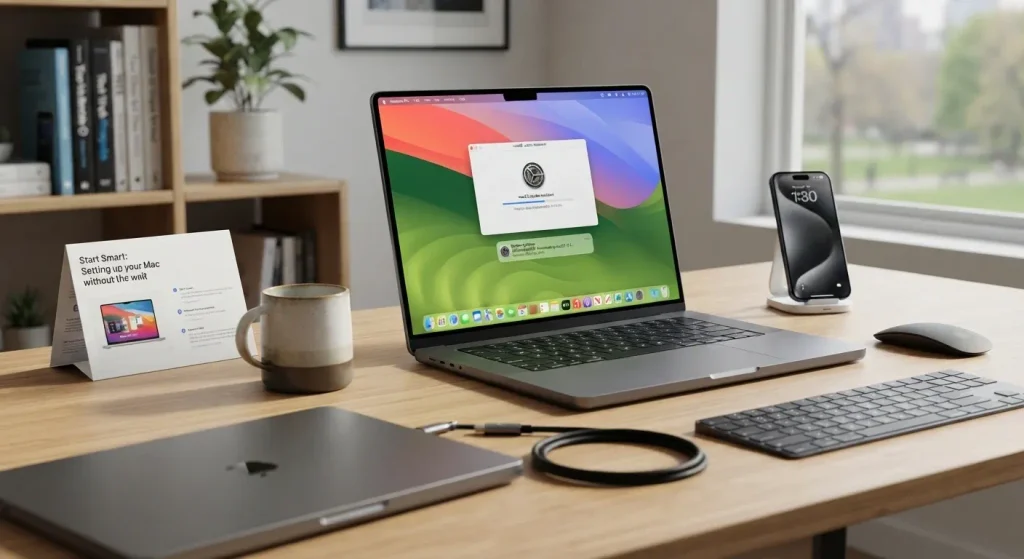
Everything above assumes the update completes. Sometimes it does not.
When the Install Stops
macOS Installation Couldn’t Be Completed is the message people hit at exactly this stage, and the causes are usually mundane rather than serious.
Not enough free space, because installers need considerably more room than the download size suggests. A partially downloaded installer. An incorrect system date, which sounds too trivial to matter and genuinely causes it. Or the machine going to sleep partway through.
The Prep That Prevents It
Leave far more free space than the installer asks for. On a new Mac this is rarely an issue, which is another argument for updating before you migrate anything.
Stay on mains power, and stop the machine from sleeping for the duration.
Let the installer download completely before starting it, rather than launching it as the last part arrives.
Check that the date and time are right. Thirty seconds, and it removes one of the more frustrating causes.
The Ten Minutes Everybody Skips
Most people stop setting up a Mac the moment it becomes usable. Then they never go back and configure how they actually work on it.
The highest-return item here is window management, because it applies to every hour you spend on that machine from now on.
Current macOS gives you two separate things. The older full-screen mode puts two apps side by side, and the newer tiling behavior snaps windows into position by dragging them to a screen edge or using a keyboard shortcut. Learning Mac Split Screen properly is the ten minutes with the longest payback in the entire setup.
Rather than list key combinations that shift between releases, Apple publishes the current window tiling shortcuts directly. Spend five minutes there.
Two other things worth doing in the same sitting. Name the machine something you will recognize on a network, because “MacBook Pro” tells you nothing when three of them appear in a list. And set up the one keyboard shortcut you know you will use fifty times a day.
Which Steps Need You
The right-hand column is where the lost day comes from. Those rows are hours long, and not one of them wants your attention.
| Step | Needs your attention | Rough time |
|---|---|---|
| Set up Assistant and sign in | Yes | 10 minutes |
| Downloading the macOS update | No | Varies by connection |
| Installing the update | No | 30 to 60 minutes |
| Choosing what to migrate | Yes | 5 minutes |
| The migration transfer | No | 30 to 90 minutes |
| iCloud sync and indexing | No | Hours, in the background |
| Installing applications | Mostly no | Varies |
| Configuring how you work | Yes | 10 minutes |
Frequently Asked Questions
Migrate if the old Mac was behaving well. Start clean if it had become slow or unpredictable, because migration carries those problems across with your files.
You do not have to, and it is the better order. The update runs faster on an empty system, and a failure costs you nothing before your data is on the machine.
Usually thirty to ninety minutes over a direct connection, longer over Wi-Fi, and even longer for very large libraries. None of it needs watching.
Most often, insufficient free space, an incomplete installer download, an incorrect system date, or the Mac sleeping during the process.
Window management, the machine name, and your most-used keyboard shortcut. Ten minutes, and it affects every day afterward.
Related posts:
 How Dechecker AI Checker Turns Awkward Drafts Into Human-Readable Content
 The Complete Guide to Using Telegram for Secure and Smart Communication
 The Chemistry Behind Firefighting Foam: How Surfactants Make Fire Suppression Work
 Dell Latitude 5540 Performance Tested: Can It Handle Your Workflow?
 Best Traction Tools for Lifted Jeeps & SUVs on the Trail
Leave a Reply